Reset a Smart Pet Feeder: Soft vs Factory Reset
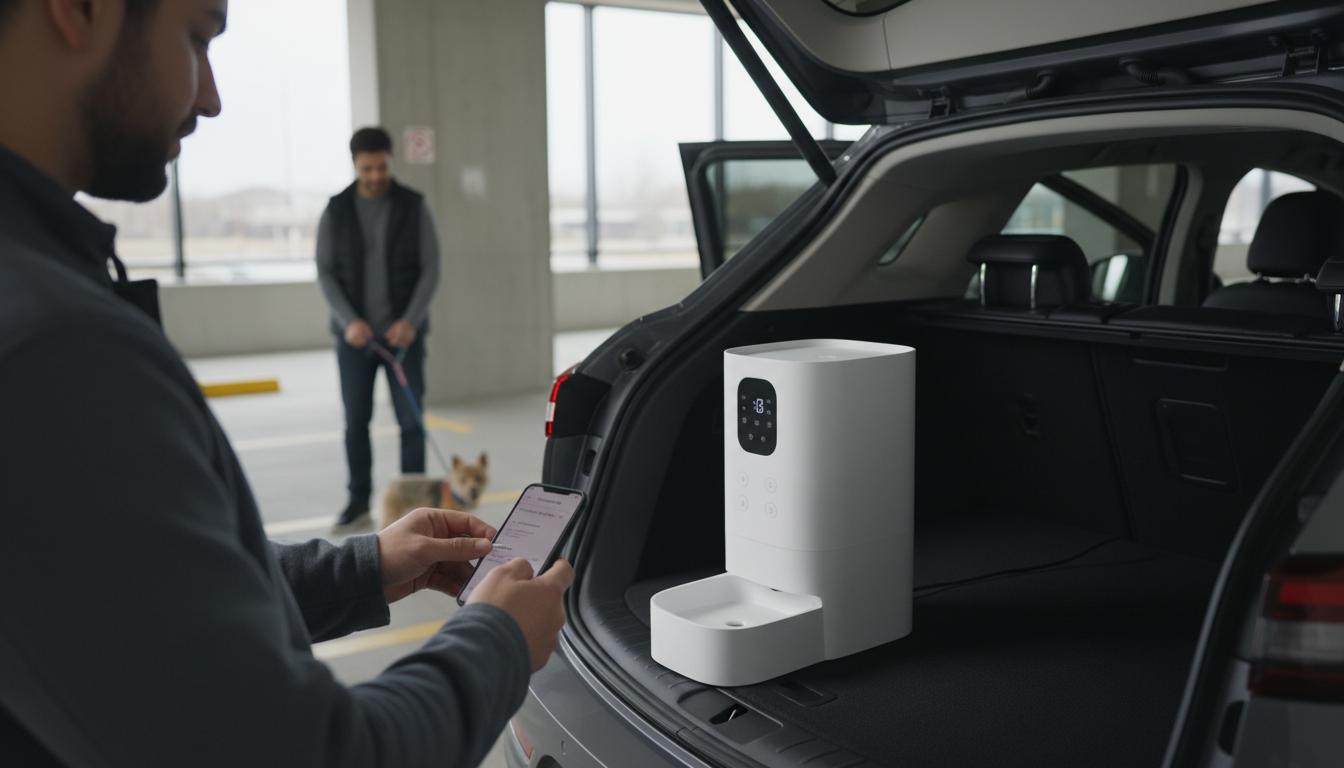
How to Reset a Smart Pet Feeder?
Resetting a smart pet feeder usually fixes common issues like Wi‑Fi connection errors, app pairing problems, frozen buttons, incorrect time settings, or missed feedings. The exact steps can vary by model, but most smart feeders follow the same reset patterns: a soft reset (keeps settings) or a factory reset (erases settings and requires setup again).
1) Try a quick power reset first
Unplug the feeder from power, remove the backup batteries (if installed), and wait 60 seconds. Reinstall batteries, plug the unit back in, and let it fully boot. This simple reset often clears minor glitches without erasing your schedule.
2) Do a soft reset (when available)
If your feeder has a “Reset” or “Pair” button, press and hold it briefly (often 3–5 seconds) until you hear a beep or see an indicator light change. A soft reset may restart connectivity features while keeping saved meal times, depending on the feeder.
3) Perform a factory reset (full reset)
Use a factory reset if the feeder won’t pair, keeps going offline, or isn’t responding. Typical steps are to power the feeder on, then press and hold the reset/pair button longer (commonly 10–15 seconds) until the light flashes rapidly or an audio prompt confirms reset. Afterward, you’ll need to reconnect the feeder to the app, set the time zone/time, and rebuild feeding schedules.
4) Reconnect to Wi‑Fi and re-add it in the app
After a factory reset, remove the feeder from the app (if it still appears), then add it again like new. Use a 2.4 GHz Wi‑Fi network if your feeder doesn’t support 5 GHz, and keep the feeder close to the router during pairing.
5) Confirm settings before leaving it unattended
Run a manual test feed, verify the clock is correct, and confirm portion settings. If your feeder supports voice recording and timed meals, re-check each schedule entry after reset.
For model-specific setup details, including features like voice prompts, timer scheduling, and a stainless steel bowl, see the full guide here: https://supremechoiceden.shop/blog/guide-4l-smart-automatic-pet-feeder-voice-timer-stainless-steel-bowl/.
FAQ
Why is my smart pet feeder not connecting to Wi‑Fi?
Most connection failures are caused by using a 5 GHz network, a weak signal, or the feeder not being in pairing mode. Switch to 2.4 GHz, move the feeder closer to the router, and redo pairing after a factory reset if needed.















Leave a comment