FPV Quadcopter Bluetooth Pairing: Phone & Controller Steps
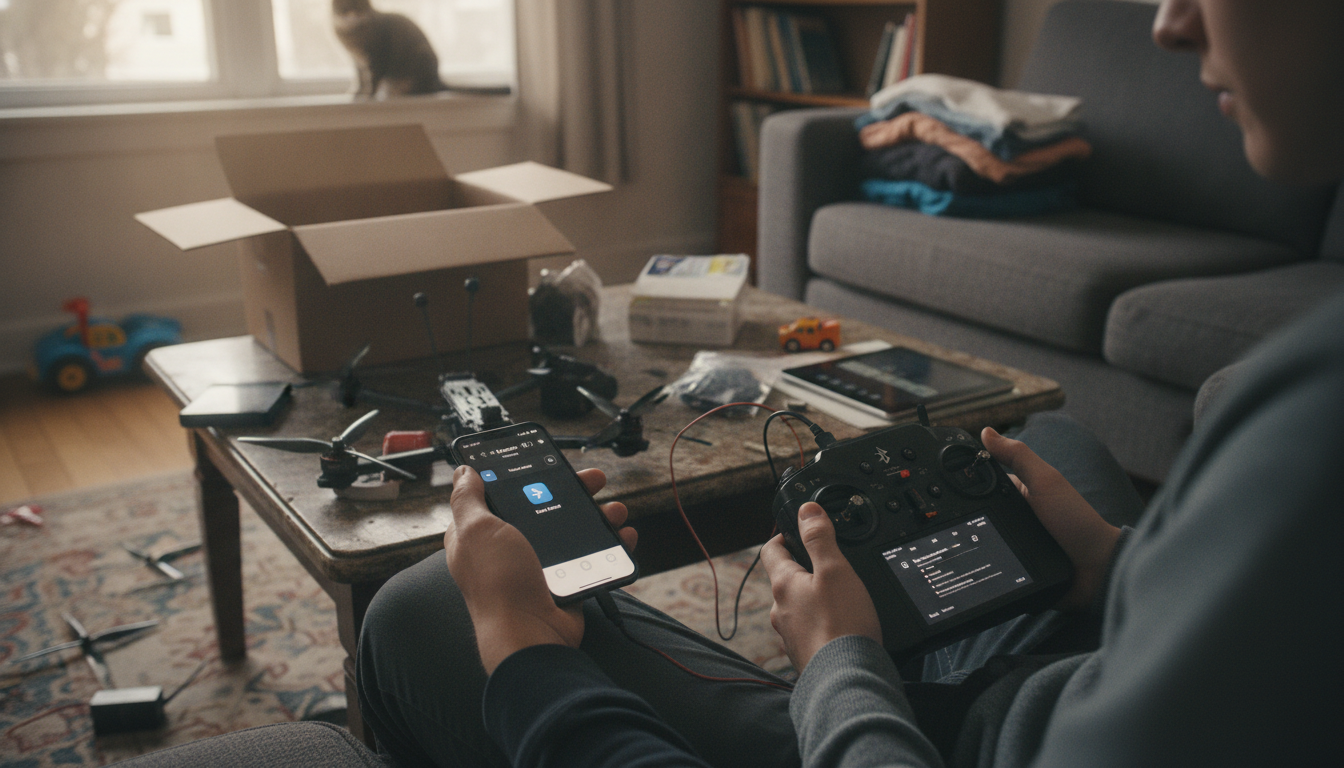
How do you pair an FPV quadcopter with Bluetooth to a phone or controller?
Bluetooth pairing on an FPV quadcopter usually connects a “smart” accessory layer (apps, firmware tools, camera settings, or telemetry bridges) rather than the primary flight control link. Most FPV quads still fly over dedicated radio protocols (like ELRS/Crossfire) and use Wi‑Fi or dedicated video links for the live feed, so don’t be surprised if Bluetooth is for setup, not for piloting.
1) Confirm what you’re actually pairing
Check the manual or product page to see whether Bluetooth belongs to the flight controller, a camera module, a digital VTX, a GPS/telemetry accessory, or a separate Bluetooth adapter. If your quad has no Bluetooth hardware, pairing won’t be possible without an add-on module.
2) Put the quad (or module) in pairing mode
Power the quad with a battery in a safe area (props off is best). Many modules enter pairing mode after a button press, a long-press on the VTX, or a specific power-cycle pattern. Look for a flashing LED pattern that indicates discoverable mode.
3) Pair to a phone
Enable Bluetooth on your phone and open the manufacturer’s app first if one is required—some devices won’t appear in the standard Bluetooth list until the app scans for them. If the device does appear in Bluetooth settings, select it and approve any pairing request. When prompted for a PIN, common defaults are 0000 or 1234 (use the manual if available).
4) Pair to a controller
Most radio transmitters don’t pair to FPV quads over Bluetooth for flight; instead, Bluetooth may be used to connect the transmitter to a phone (for simulators, configuration, or audio). If your controller supports Bluetooth peripherals, enable Bluetooth in the transmitter’s system menu, set the quad/module to pairing mode, then select it from the discovered devices list and confirm.
5) Test the connection and range
Open the relevant app/settings page and verify live data or controls (camera parameters, GPS data, firmware readout). Keep your phone/controller within a few feet during setup. If it drops, move away from Wi‑Fi congestion, re-enter pairing mode, and ensure the quad’s battery is adequately charged.
For model-specific steps and long-range reliability tips, see the detailed guide: https://supremechoiceden.shop/guide-long-range-fpv-quadcopter-bluetooth-setup-range-tips/.
FAQ
Why won’t my FPV quadcopter show up in my phone’s Bluetooth list?
Many FPV devices only appear inside the manufacturer’s app, or they require a specific pairing mode (LED blink pattern/button press) before they become discoverable. Also confirm the quad actually has Bluetooth hardware—many flight setups use radio links for control and won’t advertise over Bluetooth at all.














Leave a comment