How to Activate a Wireless Keyboard: Easy Setup Guide
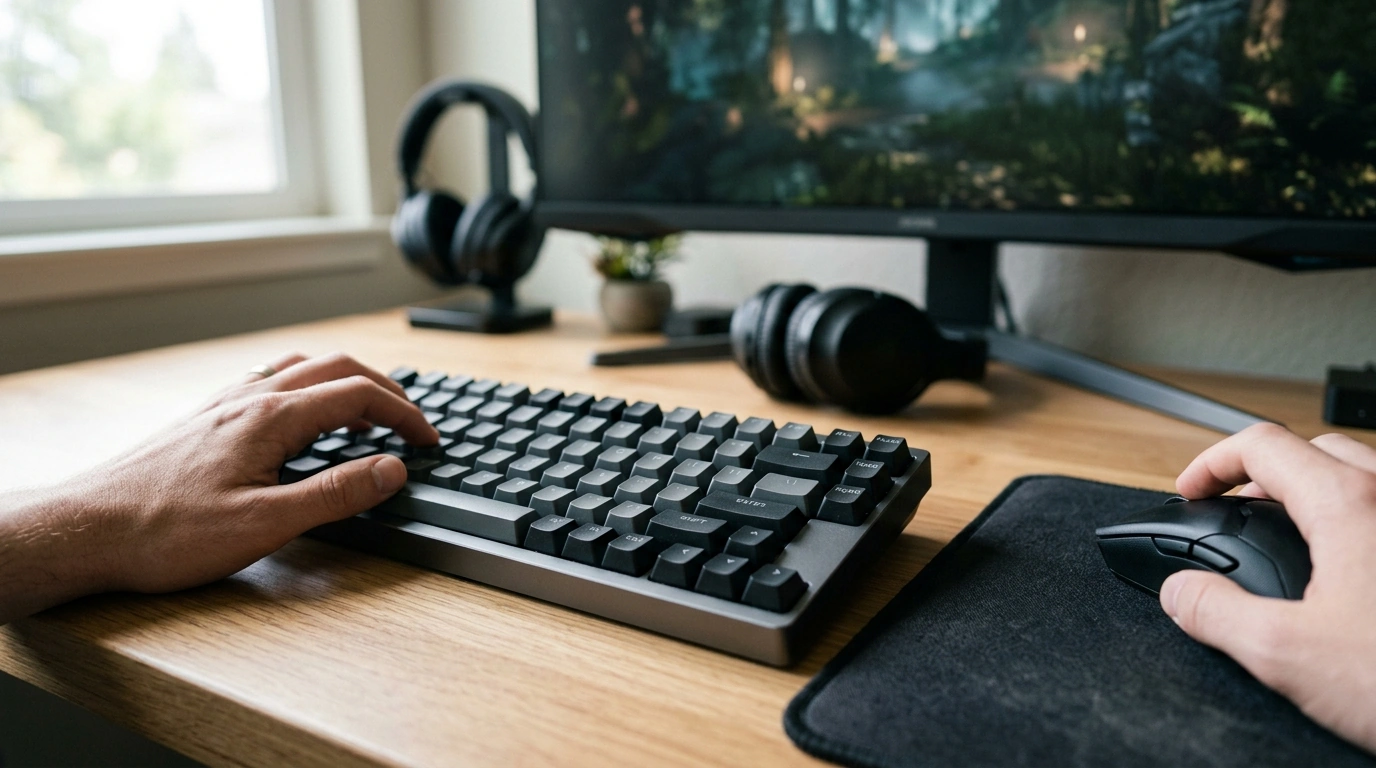
How do I activate my wireless keyboard?
To activate a wireless keyboard, charge it or install its batteries, turn it on, and connect it to your device using its supported wireless method. Depending on the keyboard, that may be Bluetooth or a USB receiver. Once connected, open a text field and type a few words to confirm it is working.
If you are setting up an 82-key magnetic gaming keyboard, our wireless magnetic gaming keyboard guide offers more information about the keyboard and its features.
What should I do before connecting?
Give a rechargeable keyboard enough time to charge before setup. If your keyboard uses replaceable batteries, install them in the direction shown in the battery compartment. Remove any protective battery tab if one is present.
Next, find the keyboard’s power switch and move it to the on position. Some keyboards also have a connection-mode switch or shortcut. Select the wireless mode you intend to use; the exact controls vary by model.
How do I connect with a USB receiver?
If your keyboard includes a compatible USB receiver, plug it into an available USB port on your computer. Turn on the keyboard and select its receiver or 2.4 GHz mode if it has a mode selector. Allow your computer a moment to recognize the connection, then test the keys.
If it does not respond, try another USB port and make sure the receiver is seated securely. Keep the keyboard close to the receiver during setup, and connect the receiver directly to the computer if a USB hub is causing trouble.
How do I connect with Bluetooth?
Turn on Bluetooth in your computer, tablet, or other device’s settings. Put the keyboard in Bluetooth pairing mode using its designated button or key combination, then select the keyboard when it appears in the device’s Bluetooth list. If your device displays a pairing code, enter it as directed.
If the keyboard does not appear, make sure it is in pairing mode and has sufficient power. You can also remove an old pairing from your device’s Bluetooth settings and try connecting again.
FAQ
Can I use a wireless keyboard while it is charging?
Some rechargeable wireless keyboards can be used while connected to a charging cable, but support varies by model. Connect the supplied or compatible cable and test whether the keys respond.














Leave a comment