How to Enable a Wireless Keyboard: USB and Bluetooth
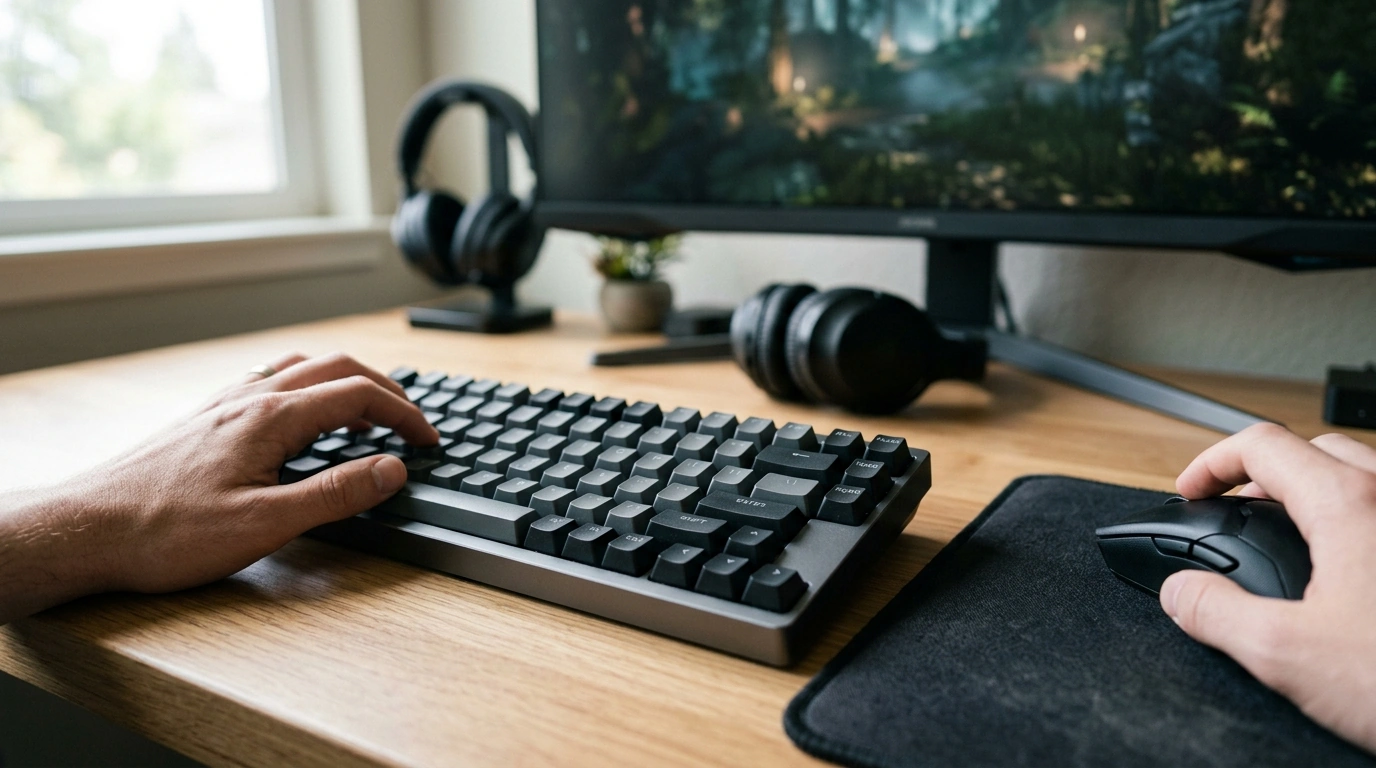
How do I enable a wireless keyboard?
To enable a wireless keyboard, give it power, turn it on, and connect it to your computer using its supported wireless method. Many keyboards connect through Bluetooth or a small USB receiver; some offer both options.
Start by looking for a power switch on the bottom, side, or back of the keyboard. Install fresh batteries or charge the keyboard if it has a rechargeable battery, then move the switch to the on position. If your keyboard has a connection-mode switch, select Bluetooth or the receiver mode before continuing.
How do I connect a keyboard with a USB receiver?
- Insert the keyboard’s USB receiver into an available USB port on your computer.
- Turn on the keyboard and select its 2.4 GHz or wireless receiver mode, if available.
- Wait a few moments for your computer to recognize the connection, then type to test it.
A receiver is often stored in a compartment on the keyboard or in its packaging. Use the receiver supplied for your keyboard; an unrelated USB receiver may not work with it.
How do I connect a keyboard through Bluetooth?
- Turn on Bluetooth on your computer, tablet, or other compatible device.
- Put the keyboard in Bluetooth mode and activate its pairing function. Depending on the model, this may involve holding a pairing button or a key combination.
- Open your device’s Bluetooth settings, choose the keyboard from the available devices, and follow any on-screen prompts.
- If a pairing code appears, enter it on the wireless keyboard and press Enter when prompted.
Some keyboards can remember more than one Bluetooth device. If yours has multiple device slots, select the slot you want before pairing.
What if the keyboard does not respond?
First, confirm that the keyboard is on, has power, and is set to the connection mode you are using. For a USB receiver, try another port and move the keyboard closer to the receiver. For Bluetooth, remove the keyboard from your device’s Bluetooth list and pair it again.
If typing still does not work, restart your device and consult the keyboard’s instructions for its specific pairing controls. Our team also recommends exploring our 82-key wireless magnetic gaming keyboard guide for more keyboard guidance.
FAQ
How do I activate my wireless keyboard?
Turn on the keyboard after installing batteries or charging it, then connect it through its USB receiver or Bluetooth. Select the matching wireless mode and follow your device’s pairing prompts if needed.














Leave a comment